How to control a teleprompter with a remote: page-turners, keyboards and rings
Published October 1, 2026 · 5 min read
Most teleprompter apps on iPhone and iPad can be controlled with an ordinary Bluetooth keyboard or a presentation page-turner, because these remotes simply send key presses such as space, the arrow keys or Page Up and Page Down. Pair the remote in the device’s Bluetooth settings, open the prompter, and the buttons pause, scroll or skip sections.
This guide explains the main types of remote, how to pair and test them, what to map each button to, and the problems that usually catch people out mid-take.
Why use a remote at all?
Reaching for the screen breaks the take: your hand enters the frame, the phone shakes, and you look away from the lens. With a remote you can pause for a question, back up a line after a stumble or jump to the next section without moving. It also matters when the prompter is out of reach, such as in a beam-splitter rig or on a second device for a livestream.
Which kinds of remote work?
- Presentation page-turners (clickers). Small, cheap and silent. They usually send the arrow keys or Page Up/Page Down, and sometimes the keys PowerPoint uses to blank the screen.
- Bluetooth keyboards. The most buttons and the most control; handy for a helper off camera.
- Ring or “TikTok” remotes. Worn on a finger and designed for scrolling short videos; they send swipes or taps rather than key presses, so whether they work depends on the app.
- Foot pedals. Made for musicians’ page turning; they leave both hands free for product demos.
- Remotes sold with a specific teleprompter rig. Some only work with that brand’s own app, so check before you buy.
How do I pair a remote with an iPhone or iPad?
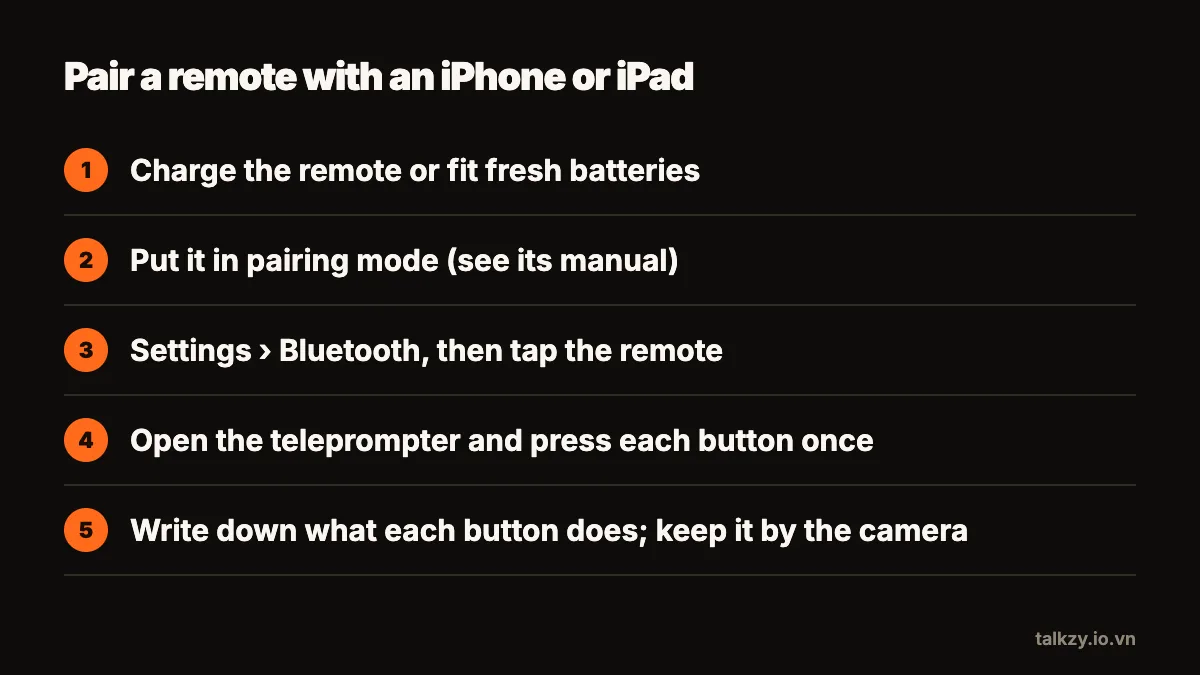
- 1Charge the remote or put in fresh batteries.
- 2Put it in pairing mode (often a long press of a button, see its manual).
- 3On the iPhone or iPad, open Settings › Bluetooth and tap the remote when it appears.
- 4Open the teleprompter and press each button once to see what it does.
Many keyboard-type remotes hide the on-screen keyboard while they are connected. That’s normal; disconnect the remote when you need to type.
What should each button do?
Teleprompter apps differ, but a sensible mapping looks like this:
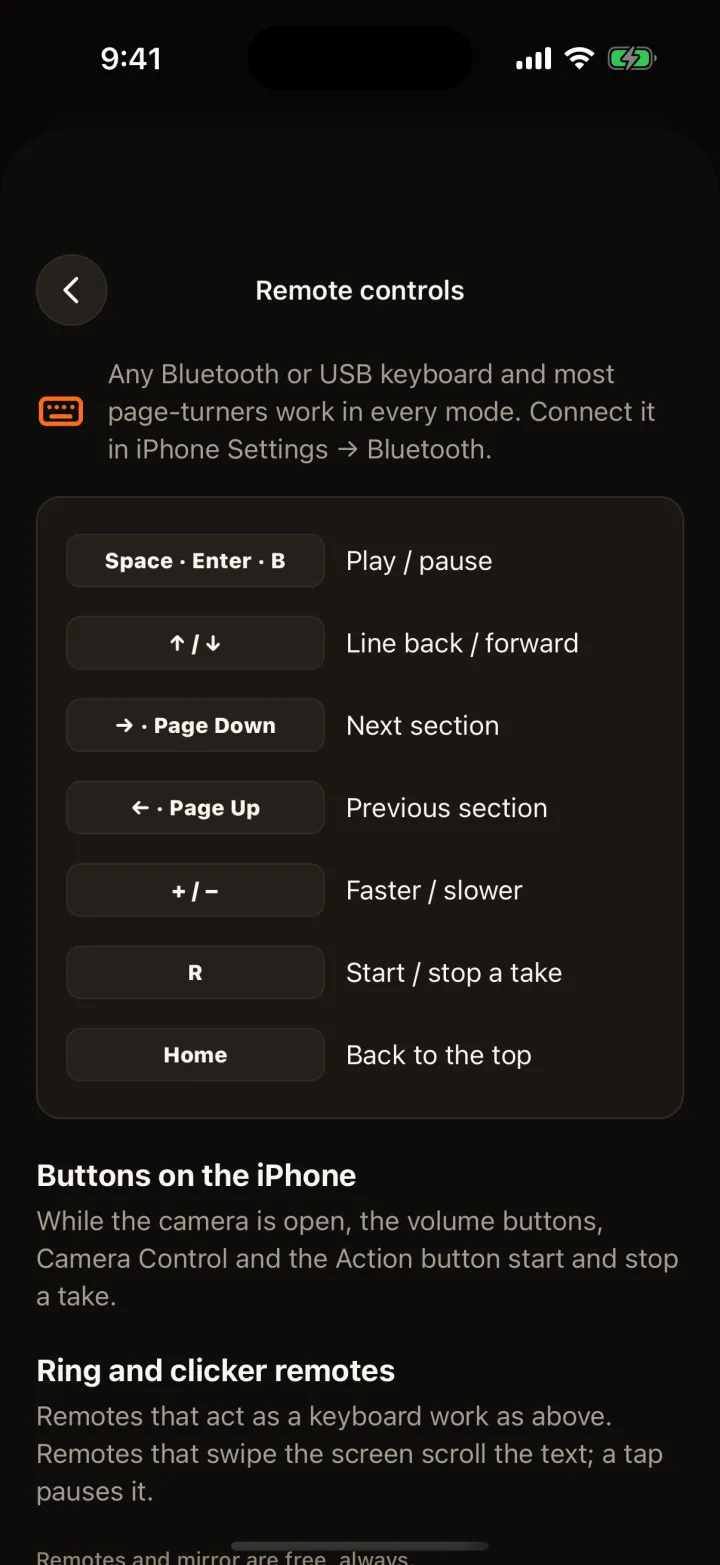
- Space or Enter: play and pause.
- Up and Down arrows: move back or forward one line.
- Page Up/Page Down or Left/Right: previous or next section.
- Plus and Minus: faster or slower.
With a two-button clicker, the most useful pair is usually pause/play and next section. Write down what each button does and keep the note by the camera until it’s second nature.
Do I need a remote made for teleprompters?
Usually not. A general-purpose page-turner or a small Bluetooth keyboard works with most teleprompter apps, because they all listen for standard key presses. Remotes sold as “teleprompter remotes” are often the same hardware with a different label — or are locked to one brand’s app. Before buying, check two things: that your app lists the remote type (keyboard, page-turner or ring) as supported, and that the buttons send keys the app understands. If you already own a presentation clicker, try it first.
Can I start recording with a remote?
On iPhone, apps that use the camera can respond to the volume buttons — and on newer models the Camera Control button — to start and stop recording, which turns any wired or Bluetooth device that acts as a volume button into a shutter. Whether a teleprompter app supports this depends on the app.
What usually goes wrong?
- The remote sleeps. Many go to sleep after a few idle minutes and lose the first press after waking. Press once before you start.
- It’s paired to another device. A remote can be remembered by your laptop too and connect to it instead.
- Clicks are audible. Some page-turners click loudly; a silent model or foot pedal helps if your mic is close.
- Low battery. Bluetooth gets unreliable before the remote dies completely. Charge before every long session.
Test the whole chain — remote, prompter and recording — in a 30-second rehearsal take every time.
Where Talkzy helps
Talkzy works with Bluetooth keyboards, page-turners and ring remotes in every mode. Space or Enter pauses and plays, the up and down arrows move a line, Page Up/Down or the left and right arrows move between sections, plus and minus change the speed, and R starts recording.
With the camera open, the volume buttons and Camera Control start and stop a take. Remotes are free in Talkzy — they are never behind a paywall.