How to use a teleprompter on iPhone when you film yourself
Published October 1, 2026 · 6 min read
Reading a script while you film yourself sounds simple until you watch the take back: your eyes drift away from the lens, the text runs too fast or too slow, and the one good take is ruined by a notification banner. None of that needs a studio to fix. An iPhone, a stable spot to put it and twenty minutes of setup get you most of the way.
This guide walks through the setup in the order that matters, from where the words sit on the screen to the test take you should always do before the real one. Everything here works with the iPhone you already have; the last section covers what a dedicated teleprompter app adds.
Why the position of the text matters most
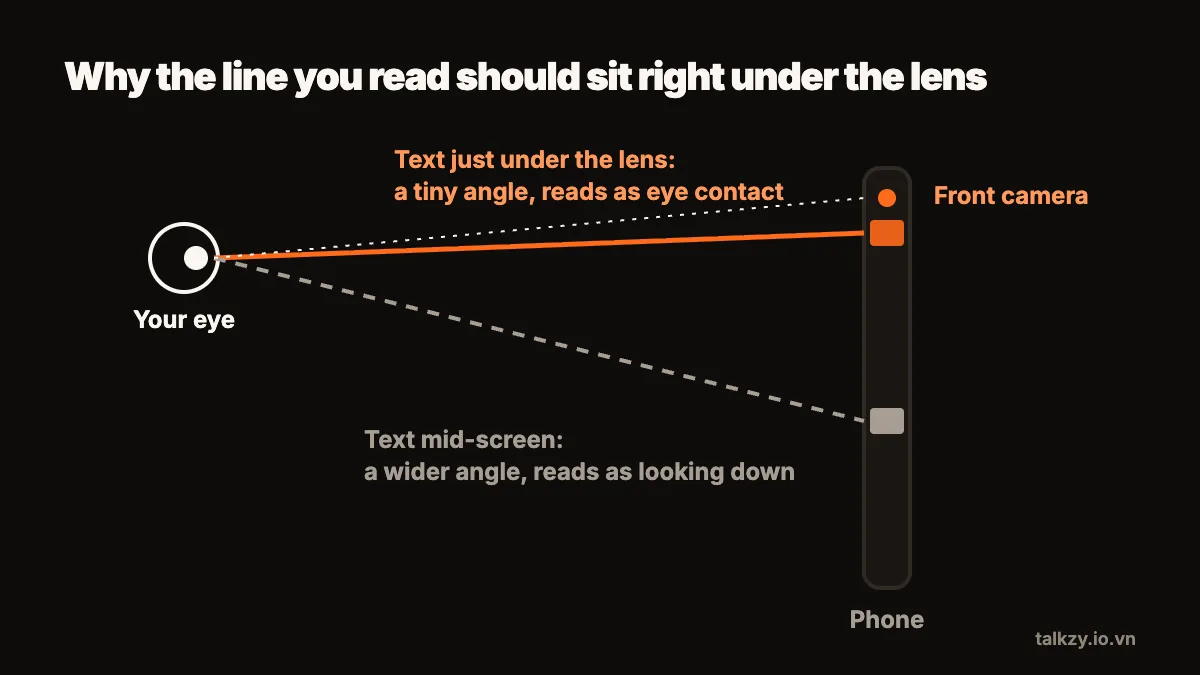
Viewers notice your eyes before anything else. When you read text that sits in the middle of the screen, your gaze is a few centimetres below the lens, and on video that reads as looking down at your notes. The fix is to keep the line you are reading as close to the camera as possible.
On an iPhone held upright, the front camera sits at the top centre of the screen. So the best place for your script is a narrow column right under it: the narrower the column, the less your eyes travel from side to side, and the closer the current line is to the lens, the more it looks like eye contact.
Distance helps too. The farther the phone is from your face, the smaller the angle between the lens and the text, so the same eye movement becomes harder to see. Arm’s length is a minimum; a tripod a little farther away is better, as long as you can still read comfortably.
Set up the phone
- 1Mount the phone at eye level. A tripod, a stack of books or a shelf all work; what matters is that the lens is level with your eyes, not below your chin. Looking down into a lens is unflattering and makes reading obvious.
- 2Clean the front camera with a soft cloth. A fingerprint on the lens gives the whole video a hazy glow that no edit removes.
- 3Turn on Do Not Disturb or a Focus mode. An incoming call or banner can interrupt a recording, and you will not notice it until playback.
- 4Check free storage. Video at higher resolutions uses a lot of space, and running out halfway through a long take is avoidable.
- 5Decide portrait or landscape before you write. Short vertical videos and livestreams are usually portrait; YouTube-style videos are usually landscape. The camera moves to the side of the screen in landscape, so the text column should follow it.
Light and sound before the script
A teleprompter will not save a dark, echoing video. Face a window or a lamp so the light falls on your face from the front; light from behind turns you into a silhouette. If the picture keeps brightening and darkening while you talk, the camera is re-exposing. In the Camera app you can touch and hold on your face to lock exposure and focus (AE/AF Lock) before you start.
For sound, closer is better. The iPhone’s built-in microphone is fine in a quiet, furnished room at arm’s length. Bare walls make echo, and an air conditioner or traffic outside will be louder on the recording than you remember. A wired or wireless clip-on mic near your chest is the single biggest upgrade if your audio sounds thin.
Get the script onto the screen
Without a teleprompter app, you have a few workable options:
- A second device behind the phone. Put a laptop or tablet directly behind and slightly below the iPhone, open the script in large text, and scroll it with a key or a page-turner. Your eyes stay close to the lens because the text is right behind it.
- A web teleprompter in a browser on that second device, so the text scrolls by itself at a speed you set.
- A video editor with a built-in prompter. Some editing apps, such as CapCut, include a basic scrolling-text overlay while you record.
- Notes, as a last resort. You can hold a short script in Notes and glance at it between sentences, then cut those glances out in editing. It works for a few lines, not for a full script.
Whatever you use, make the text big — bigger than feels normal. At arm’s length, small type makes you squint and lean in, which shows on camera.
Pick a scrolling speed
Scrolling speed is where most first takes go wrong. Too fast and you rush; too slow and you start reading ahead and then waiting, which looks like hesitation.
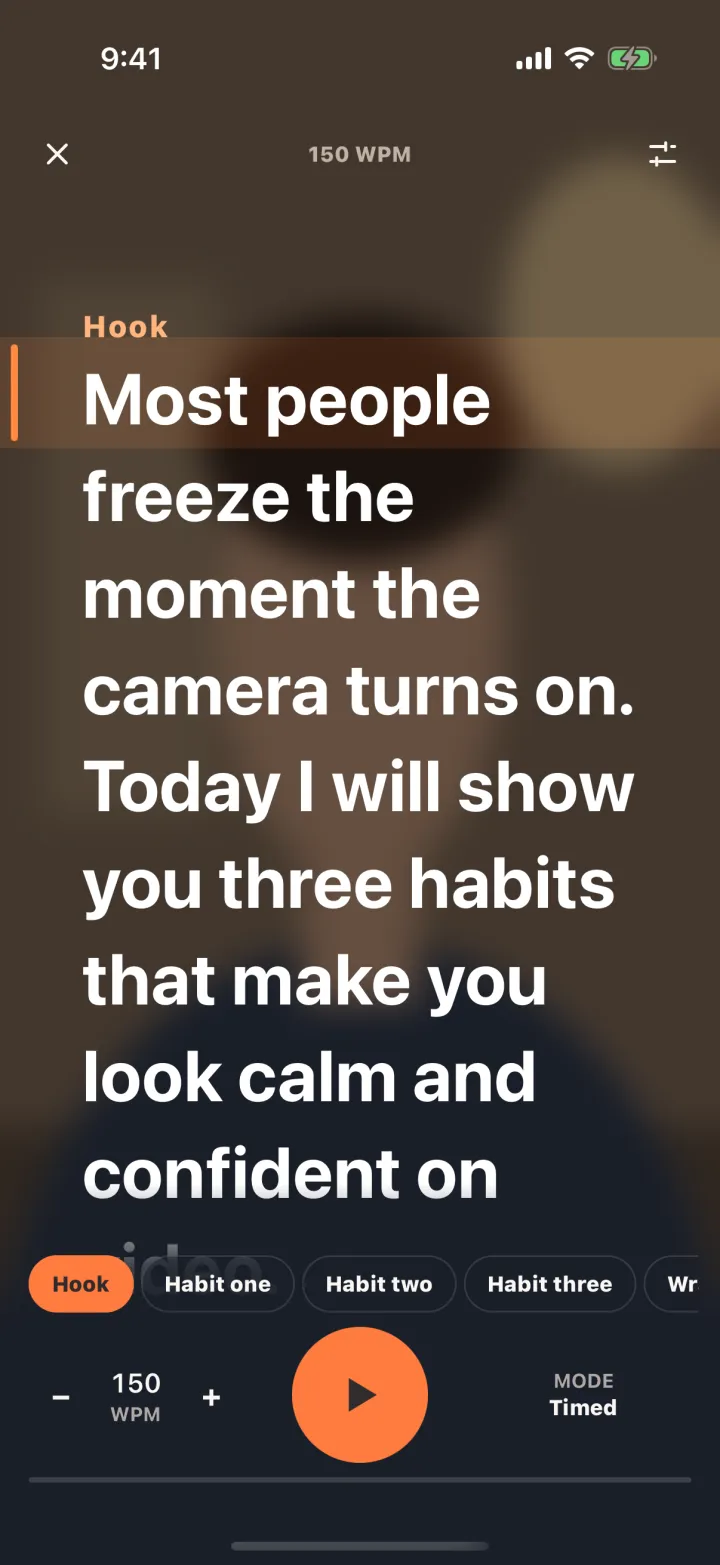
Find your own pace before you set any number. Read a paragraph aloud for one minute, at the tone you will use on camera, and count the words. Many people land somewhere around 130 to 160 words per minute in conversation, but your number is the one that matters. Set the prompter a little below it: it is easier to speed up a slow scroll mid-take than to catch up with a fast one.
Scrolling that follows your voice removes this problem entirely, because the text waits when you pause. If your tool doesn’t do that, a remote or keyboard to nudge the scroll is the next best thing.
Do a test take, then record in sections
Record thirty seconds and watch it back on the phone, with sound. Check four things: are your eyes near the lens, is your face evenly lit, is the audio clear without echo, and is the frame straight with a little space above your head. Fix one thing at a time and test again.
For anything longer than a minute, record in sections rather than in one go. A stumble then costs you one section, not the whole video, and you can pick the best version of each part when you edit. Leave a second of silence at the start and end of every take so there is room to cut.
Where Talkzy helps
Talkzy is a teleprompter for iPhone and iPad built around this setup. The script runs in a narrow column right under the front camera, and it can scroll by following your voice: speech recognition runs on the device, and when you pause, the text waits. If you prefer, it scrolls at a fixed speed in words per minute, or only when you drag or press a remote.
Each take is saved as its own clip named after your script, so recording in sections and choosing the best one is built in. If you are on a second device in front of a camera rig, prompter-only mode shows full-screen text and can mirror it for a beam splitter.