How to write a livestream selling script and read it from a teleprompter
Published October 1, 2026 · 6 min read
The easiest way to run a scripted live sale is to write the script in blocks — an opening, one block per product and a closing — and show it on a second phone or tablet placed right next to the camera that is streaming. You then move between blocks as the live goes, instead of scrolling through one long text.
This guide covers how to structure a livestream script, what to put in each product block, how to set up a second device as a prompter, and how to keep your place during a long live. It works for TikTok Live, Facebook Live, Shopee Live or any other platform, because the prompter sits beside the stream rather than inside it.
Why use a script for a live at all?
Live selling is long and unpredictable: viewers join at different times, ask questions, and the host has to remember prices, codes and details for every product. A script doesn’t mean reading word for word. It is a set of cues you can glance at so nothing important is forgotten — the price, the offer, the key benefit — while you still talk freely with viewers.
How should a livestream script be structured?
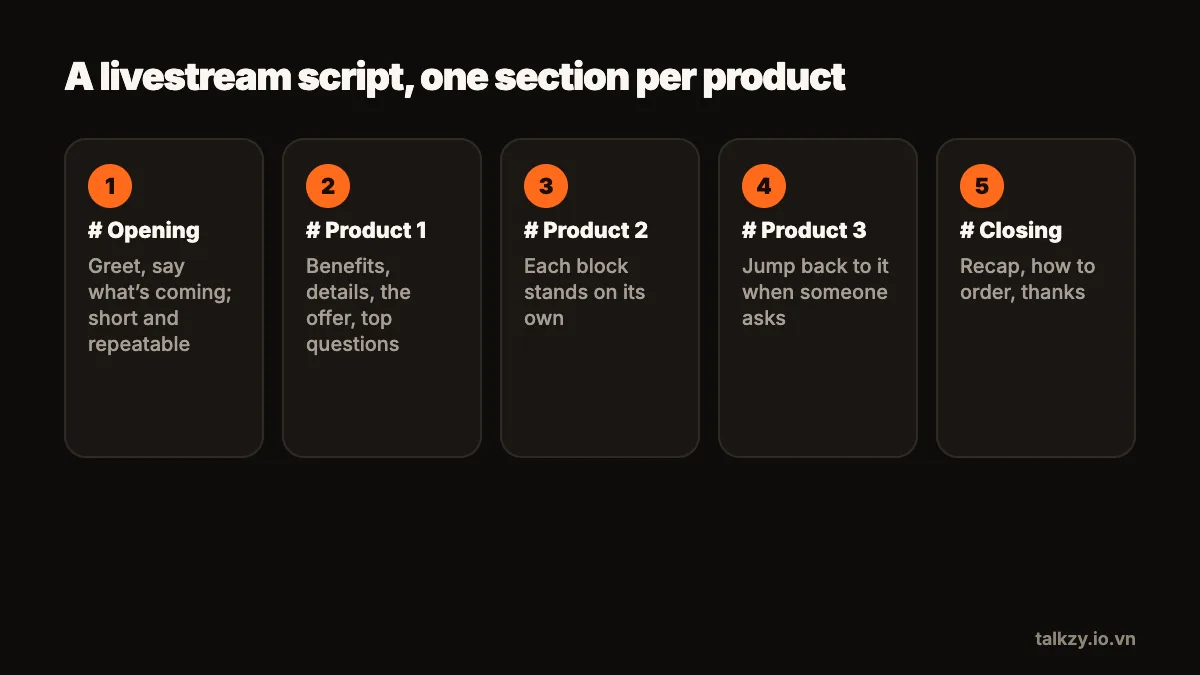
Most live selling scripts follow the same three-part shape:
- Opening: greet viewers, say what the live is about and what offers are coming, and invite people to stay. Keep it short and repeatable, because new viewers keep arriving.
- Product blocks: one block per product, in the order you will show them.
- Closing: recap the products and offers, remind viewers how to order, and thank them.
Write each block so it can stand alone. During a live you will jump back to a product when someone asks about it, so a block shouldn’t depend on what came before.
What goes in each product block?
- A one-line name of the product, as the block’s heading, so you can find it at a glance.
- Two or three key benefits, phrased the way you would say them.
- Concrete details people ask about: size, colour, material, how to use it.
- The price and the offer, exactly as you will say them, plus any code or ordering instruction.
- One or two answers to the questions you hear most often.
Keep it short. A block that fits on one screen at a large text size is a block you can actually read mid-conversation. Use cues, not paragraphs.
How do I set up a second device as a prompter?
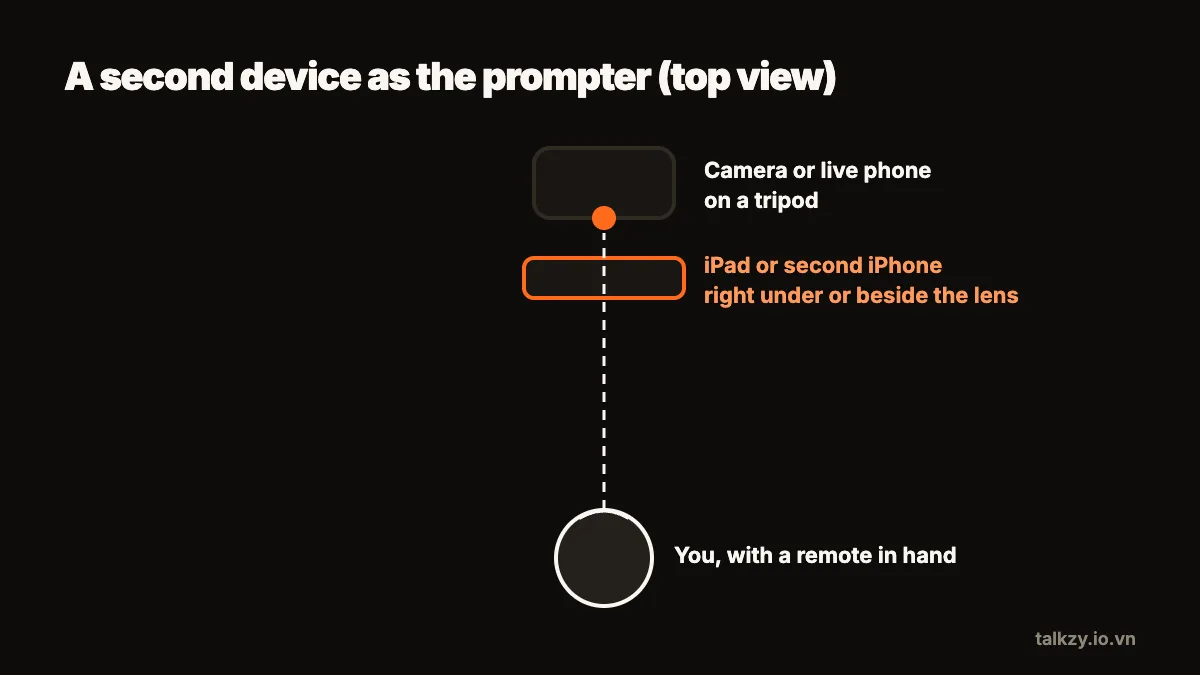
- 1Stream from your main phone as usual, on a tripod at eye level.
- 2Put a second phone or tablet directly next to or just below the main phone’s camera. The closer the text is to the lens, the less it looks like you are reading.
- 3Open the script on the second device in very large text with a dark background, which is easier to read at a distance and doesn’t light up your face.
- 4Keep the second device awake and plugged in. A long live drains a battery, and an auto-lock in the middle of a product is the last thing you need.
- 5Turn on Do Not Disturb on both devices.
How do I move between products during the live?
Scrolling a long script by hand while holding up a product doesn’t work well. Better options:
- A Bluetooth page-turner or keyboard paired with the prompter device, so one button moves to the next product block.
- A helper off camera who controls the prompter for you.
- Separate notes or screens per product, if your tool has no sections.
For a live that runs for hours, being able to loop back to the start of the script — or jump to any product when a viewer asks about it — matters more than smooth scrolling.
How do I stay natural while reading?
Glance at a cue, look back at the lens, then say it in your own words. Reply to comments by name between blocks. Repeat the key offer every few minutes, since new viewers arrive all the time. And rehearse the opening and the first two product blocks out loud before going live — the first minutes set the tone.
Where Talkzy helps
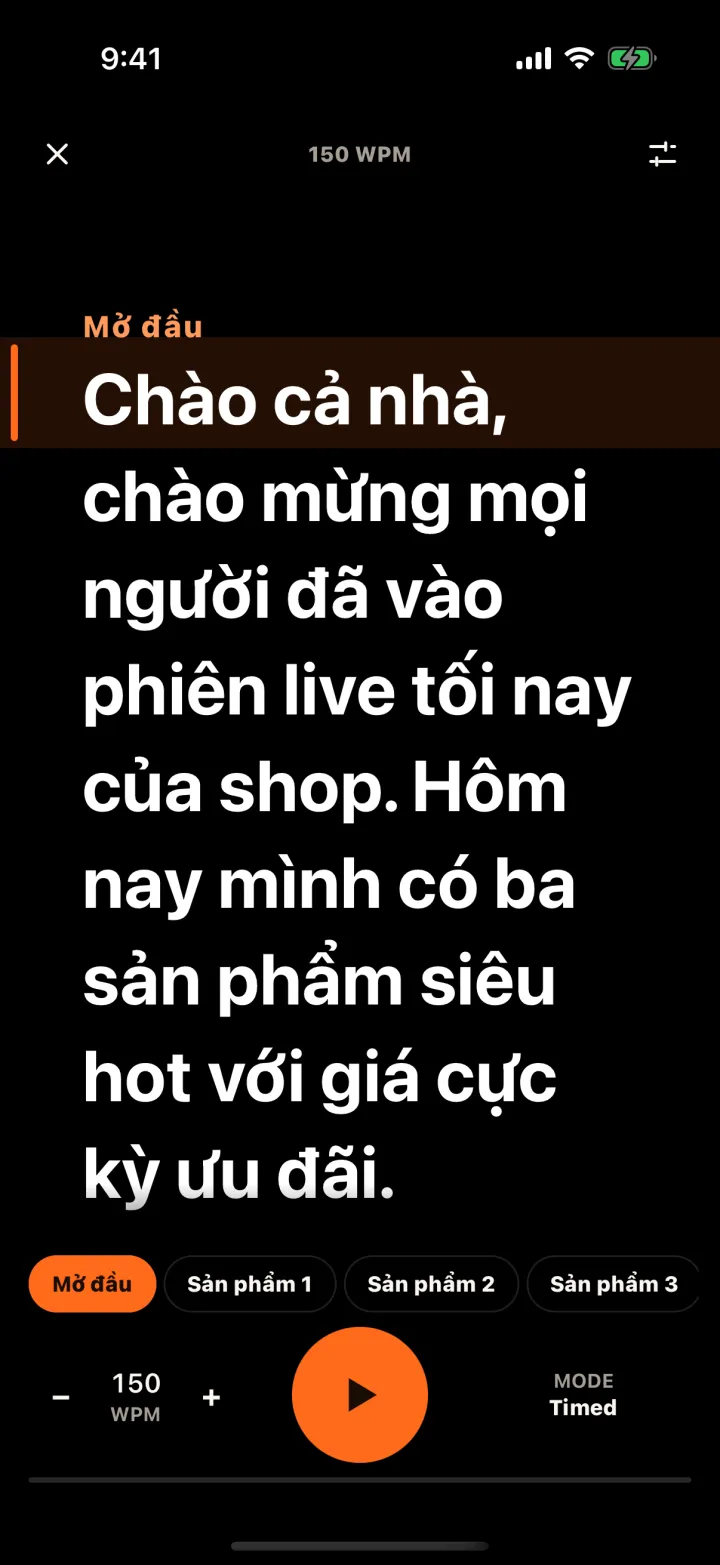
Talkzy was designed with this setup in mind. Write the script with a line starting with # for each product, and each one becomes a section. On the second iPhone or iPad, prompter-only mode shows the script full screen, with a black background and very large white or yellow text, and the screen stays awake.
Move between sections with a Bluetooth keyboard or page-turner, and loop the script for a long live (loop is part of Talkzy Pro). Talkzy doesn’t stream itself — it is the prompter next to the phone that does.