How to use a teleprompter with the iPhone’s back camera
Published October 1, 2026 · 5 min read
To read a script while filming with the iPhone’s back camera, put the script on a second device placed right under or beside the back lens, or in a beam-splitter rig in front of it. The phone’s own screen faces away from you, so the words have to come from somewhere else, as close to the lens as you can get them.
This guide explains why people switch to the back camera, the three setups that work, and how to frame and control a take when you can’t see or touch the recording phone.
Why film with the back camera at all?
On most iPhones the back camera has a larger sensor and better lenses than the front one, so it handles dim rooms better, gives more detail and offers more choice of lens. For a video that will be watched on a big screen, a course or a product shot, the difference can be worth the extra setup.
The catch is that the screen, the script and the preview are all on the side facing away from you. So you need a second screen for the words, and a way to check the framing before you start.
Setup 1: a second device right under the lens
The simplest option, and good enough for most talking videos.
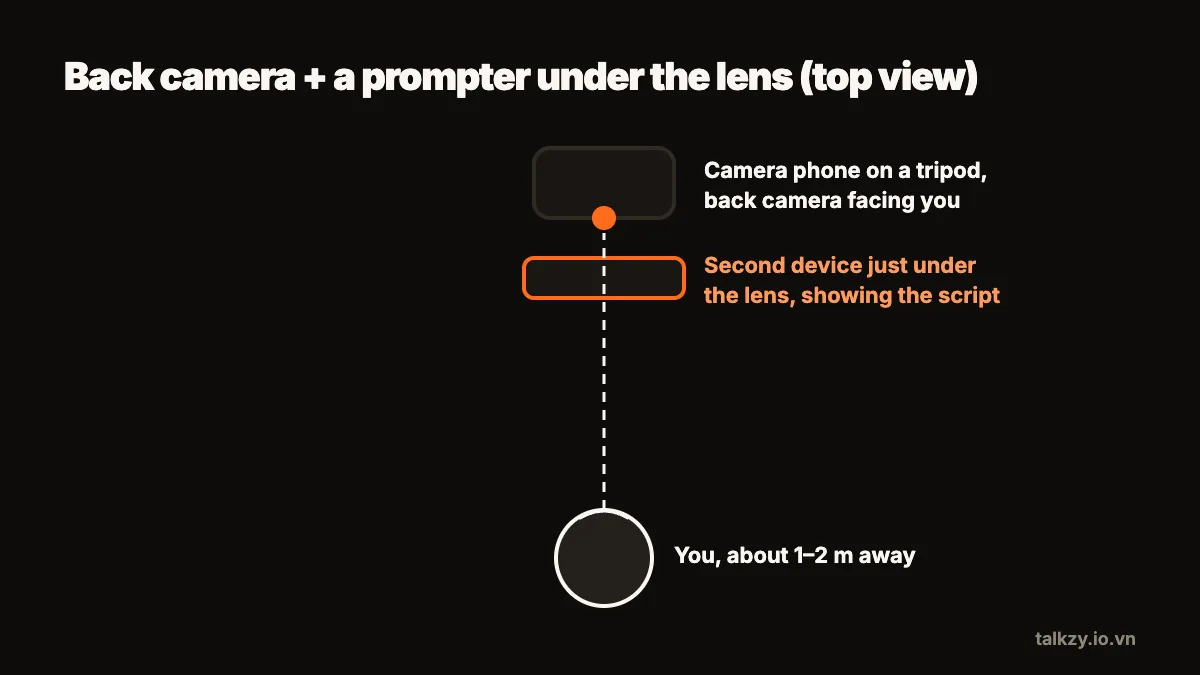
- 1Mount the iPhone on a tripod at eye level with the back camera facing you.
- 2Put an iPad or a spare phone directly under the back lens, screen toward you, as close to the lens as the mounts allow.
- 3Show the script full screen in large text, in a narrow column near the top edge, closest to the lens.
- 4Sit or stand 1 to 2 metres back. At that distance the small gap between the lens and the text is hard to see on camera.
Setup 2: a beam-splitter rig
If you want your eyes exactly on the lens, put the iPhone behind a beam-splitter glass. The script device lies face up under the glass and shows mirrored text; you read the reflection while the back camera films through the glass. Ready-made rigs exist, and a basic one can be built from a picture frame and a box.
Check how the iPhone sits behind the glass: the back lens has to be centred on the opening, and the multiple lenses on recent iPhones mean you should pick the one you will use before you position the rig.
Setup 3: read the reflection in a mirror?
Some people point the phone’s screen at a mirror behind the camera, or use the mirror only to check framing. It works for framing, but reading a script this way is hard: the text is far away and reversed. Use it to line up the shot, then switch to one of the two setups above for the script.
How do I frame and start a take I can’t see?
- Frame first, with a stand-in. Put an object where your head will be, check the preview from behind the phone, then take its place.
- Lock focus and exposure. In the Camera app, touch and hold on the subject to lock them, so the picture doesn’t pump when you move.
- Use a countdown or a remote. A few seconds of countdown gives you time to settle. Many Bluetooth remotes and the phone’s own volume buttons can start a recording, so you don’t have to walk back and forth.
- Record a test and watch it back before the real take: eye line, focus, light and sound, one at a time.
How do I keep the script moving without touching it?
The script device is in front of you, but reaching for it shows on camera. Use a scroll at a set speed, a Bluetooth page-turner or keyboard paired with the script device, or a teleprompter that follows your voice. If you use a fixed speed, set it a little below your natural pace so a pause doesn’t leave you chasing the text.
Where Talkzy helps
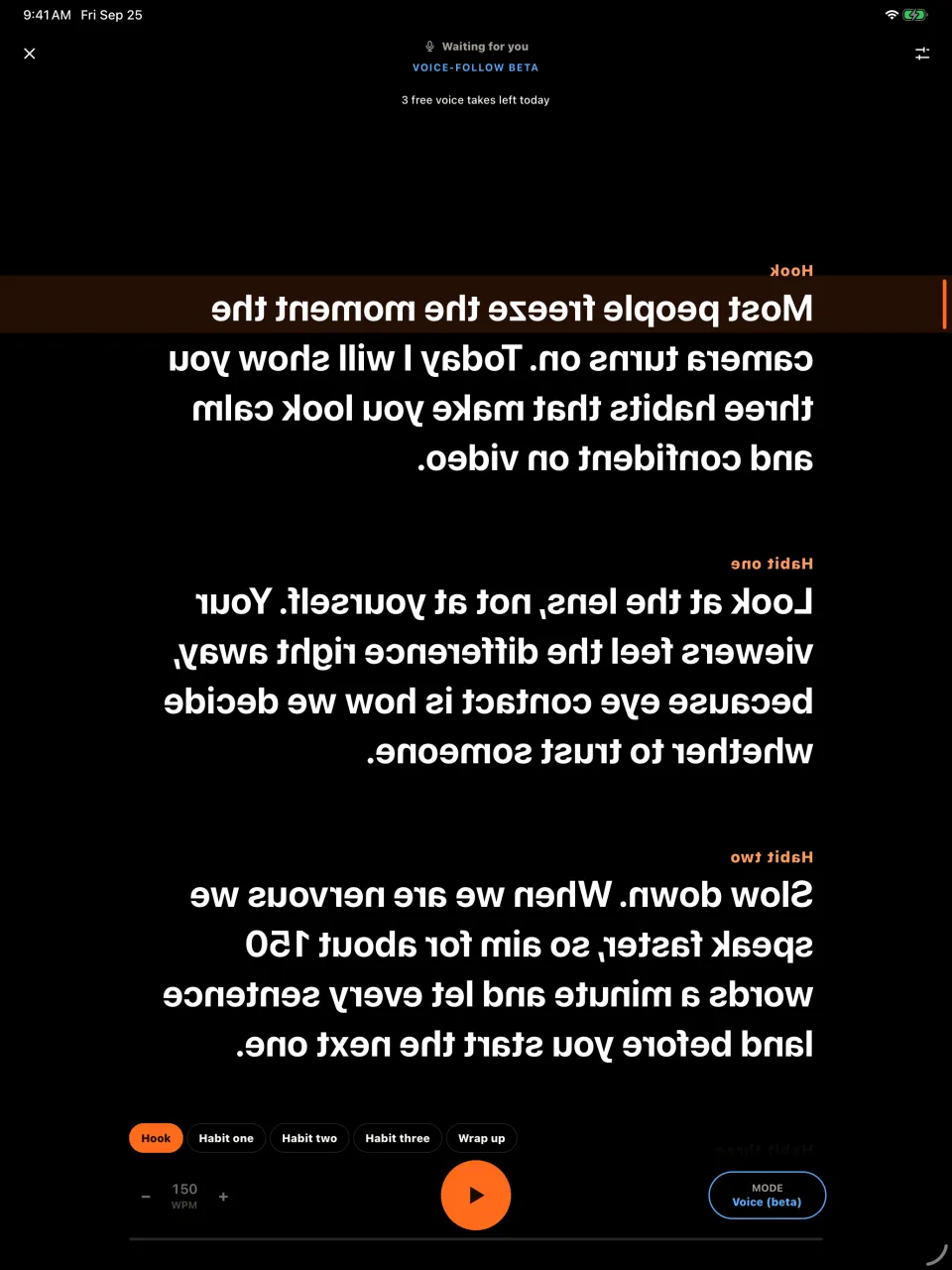
Talkzy records with the front or the back camera, and keeps each take as its own clip named after your script. On the second device, prompter-only mode shows the script full screen in very large type, mirrored left–right or upside down for a glass rig, with the screen kept awake. It scrolls at a speed you set in words per minute, with a Bluetooth keyboard, page-turner or ring remote, or by following your voice (in beta).
If the second device doesn’t have Talkzy, you can send the script as a link: it opens in a web teleprompter in any browser, and the script travels inside the link instead of being uploaded.