Talkzy vs reading your script from Notes: which teleprompter setup fits?
Published October 1, 2026 · 6 min read
Notes works as a script holder for short videos: a few lines you read once, then say from memory while the Camera app records. It is not a teleprompter, though, because on iPhone Notes and Camera can’t be on screen together and Notes doesn’t scroll by itself, so anything longer than a few sentences turns into glancing, switching apps and retakes.
This page compares the two approaches honestly: how each one works, a side-by-side table, the cases where Notes is all you need, and what a dedicated teleprompter like Talkzy changes.
How do people use Notes as a teleprompter?
There are three common ways, and each one is a workaround rather than a prompter:
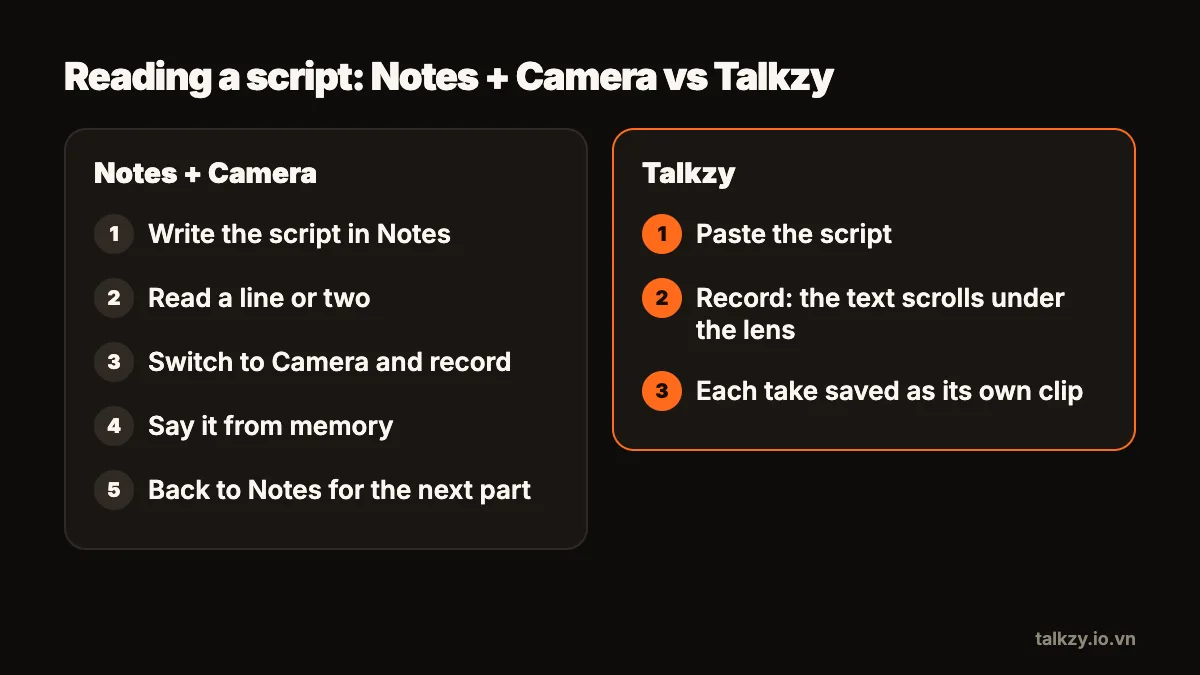
- Read, then record. Read a sentence in Notes, switch to Camera, say it from memory, stop, and go back for the next sentence. You edit the pieces together afterwards.
- Notes on a second device. Open the script in Notes on an iPad or a second iPhone, prop it right behind or under the camera phone, and scroll it with your finger between sentences.
- Print it or write cue cards. The paper version of the same idea: keep the page next to the lens and glance at it.
All three keep the script on your own device and cost nothing extra, since Notes and Camera are built in to iOS. That is a real advantage, and for a 15-second clip it is often enough.
Where does the Notes method fall short?
The limits show up as soon as the script gets longer than a few sentences:
- Your eyes leave the lens. Text in Notes on a second device sits wherever the device sits, usually below or beside the camera, and every glance at it is visible on video.
- Nothing scrolls for you. Notes has no auto-scroll, so you either stop to scroll with a finger or memorise chunks between scrolls.
- One device can’t show both. On iPhone, Notes and the Camera app can’t share the screen, so “read then record” means switching apps for every line.
- Takes pile up in the camera roll. Every short clip lands among your other photos and videos, and finding the best version of each part is your job.
None of this is a flaw in Notes; it is a writing app, not a prompter. The question is only whether your videos have outgrown it.
How do the two compare side by side?
The table below compares the built-in setup (Notes plus the Camera app, on one or two devices) with Talkzy on one iPhone or iPad.
| Notes + Camera app | Talkzy | |
|---|---|---|
| Where the text sits | In Notes: a separate app, or a second device placed near the camera | A narrow column right under the front camera, on the same screen as the camera |
| Scrolling | By hand; Notes doesn’t scroll by itself | Follows your voice (beta), runs at a set words-per-minute speed, or moves when you drag or press a remote |
| Recording while reading | On iPhone, not on the same screen: you switch apps or use a second device | Yes, front or back camera |
| Takes | Clips in the Photos library, in date order | Each take is its own clip named after the script, with a still and its length; optionally saved to a Photos album |
| Script length | Comfortable for a few lines | Long scripts, split into sections with lines starting with # |
| Remotes | Not for scrolling Notes | Bluetooth keyboards, page-turners and ring remotes; with the camera open, the volume buttons start and stop a take |
| Mirrored text for a glass rig | No | Prompter-only mode mirrors left–right and upside down |
| Where the script is stored | In Notes, on your device (and your iCloud if you use it) | On your device; no account |
When is Notes enough?
Stay with Notes if most of these are true:
- Your videos are short, around 15–30 seconds, and you know the topic well.
- You speak from a few bullet points rather than word for word.
- You record one or two takes and don’t mind cutting glances out in editing.
In that case, make the method as good as it can be. Write the script as three to five short lines, put the biggest text size you can in Notes, and on a second device set it directly under the lens rather than to the side. Read a line, look up at the lens, and only then speak. The pause before each line is easy to trim.
When is a teleprompter worth it?
A real prompter starts to pay off when the script is long enough that you can’t hold it in your head, or when the exact wording matters:
- Scripts of a minute or more, explainers, lessons or product videos with names and numbers you must get right.
- Videos where eye contact matters, such as a self-introduction, a sales pitch or a course.
- Recording often, where the time spent switching apps and hunting for takes adds up every week.
- A rig with a beam-splitter glass, which needs mirrored text that Notes can’t produce.
Can I move a script from Notes into a teleprompter?
Yes, and you don’t need to rewrite it. Copy the text from Notes and paste it into the prompter. Before you do, add a line starting with # above each part (# Intro, # Point one, # Close) if your prompter supports sections; it makes retaking one part much easier. Keep paragraphs short, since a narrow column turns long paragraphs into a wall of text.
Where Talkzy helps
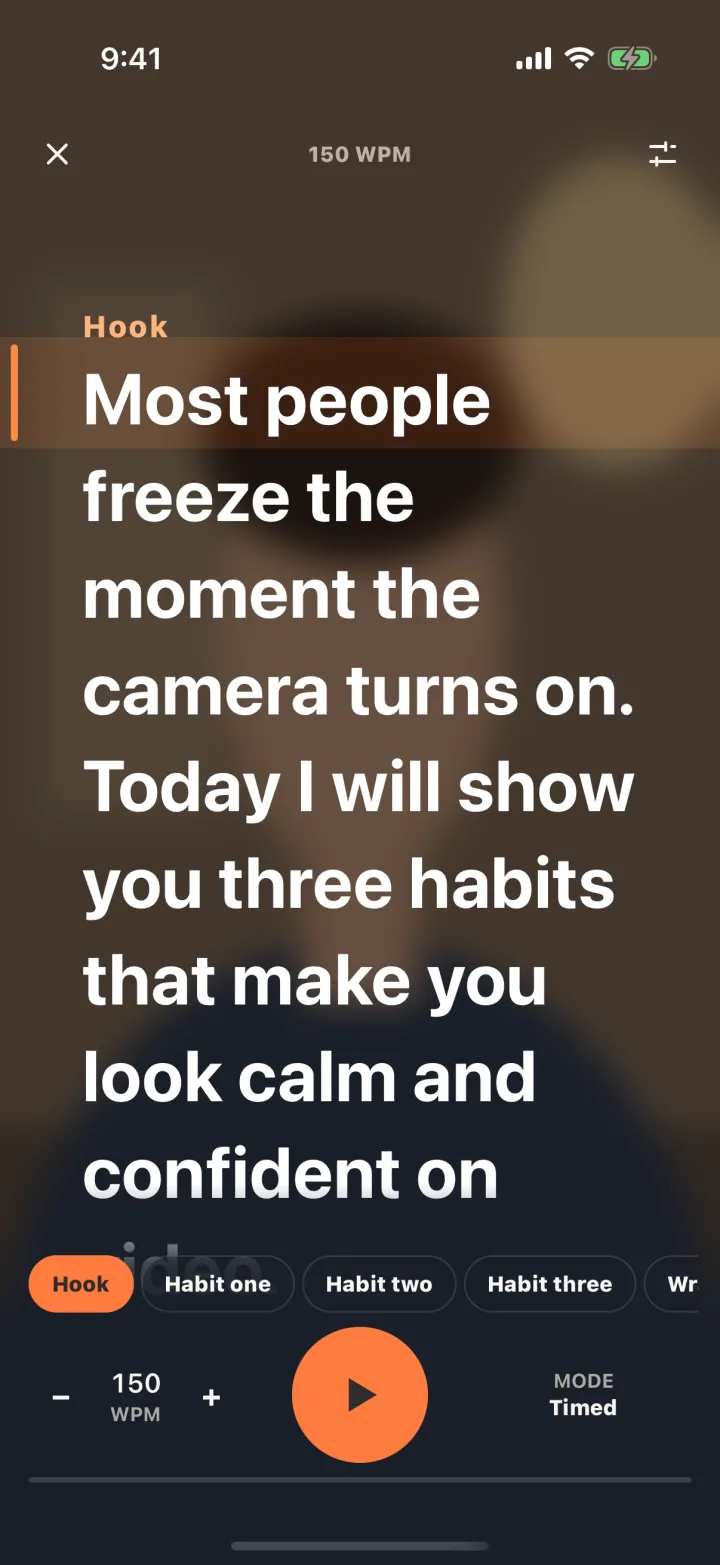
Talkzy keeps the parts of the Notes method that work, a plain script that stays on your device, and removes the switching. Paste the script from Notes (or import a .txt, .md or .rtf file), and it runs in a narrow column right under the front camera while you record on the same screen.
It can follow your voice using Apple’s on-device speech recognition, so the text waits when you pause; or it scrolls at a speed you set in words per minute, or only when you drag or press a remote. Every take is saved as its own clip named after the script, so the best version is easy to find. If Notes still suits a quick clip, keep using it; the two don’t compete for your scripts.