Talkzy vs Keynote presenter notes: which one should you read from on camera?
Published October 1, 2026 · 6 min read
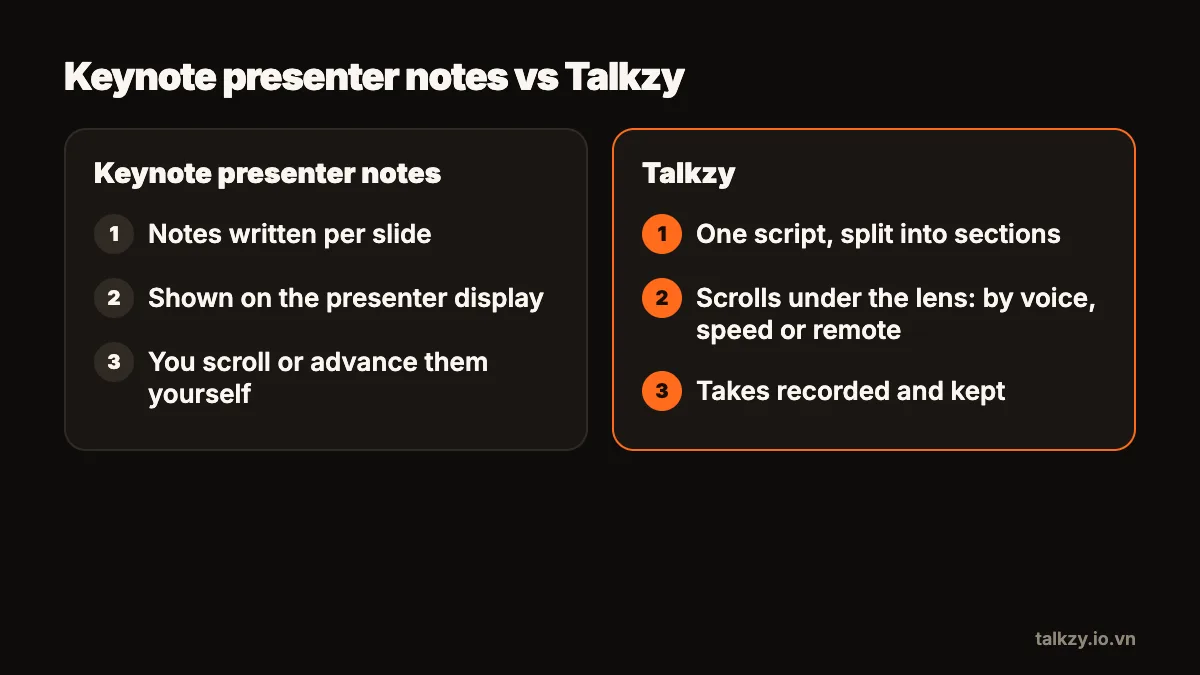
Keynote’s presenter notes are made for presenting slides: a few notes per slide, shown on the presenter display while the audience sees the slides, and you move through them yourself. For recording a talking-head video they can stand in as a prompter, but the notes don’t scroll on their own and they are tied to slides, so a teleprompter is the better fit when the video is you talking to the camera.
This page explains how presenter notes work, compares them with Talkzy in a table, and shows when Keynote is the right tool and when a prompter is.
What are Keynote presenter notes?
Every Keynote slide can carry presenter notes: text that only the presenter sees. You can show them while you edit, and when you play a presentation with a second display connected, the presenter display shows your notes next to the current and next slides while the audience sees only the slides.
Keynote is built in to Apple’s devices and free to use, and for a live presentation the presenter display is exactly what you want: your notes and your slides stay in step, and moving to the next slide brings up the next notes.
Can presenter notes work as a teleprompter?
They can, with some care. People who record a narrated slide video, or present to a camera, often put their script into the notes and read from the presenter display. It works best when:
- The video is about the slides, and your notes for each slide are short.
- The display with the notes sits close to the camera, so your eyes don’t travel far.
- The note text is set large enough to read at your recording distance.
What presenter notes don’t do is scroll by themselves. You scroll long notes or move to the next slide yourself, so a full word-for-word script turns into many short notes and many clicks, and there is no mode that follows your voice.
How do they compare side by side?
The comparison below is for recording yourself talking to a camera, not for presenting live to a room.
| Keynote presenter notes | Talkzy | |
|---|---|---|
| Made for | Presenting slides, with notes per slide | Reading a script on camera |
| Where the text sits | On the presenter display, wherever that screen is | A narrow column right under the front camera of the iPhone or iPad |
| Scrolling | You scroll the notes or advance the slide yourself | Follows your voice (beta), runs at a set words-per-minute speed, or moves when you drag or press a remote |
| How the script is split | One note per slide | One script, split into sections with lines starting with # |
| Remotes | Advance slides with a keyboard or clicker | Bluetooth keyboards, page-turners and ring remotes for play, pause, line, section and speed |
| Mirrored text for a glass rig | Not a presenter-notes feature | Prompter-only mode mirrors left–right and upside down |
| Takes | Not a presenter-notes feature | Each take is its own clip named after the script, with a still and its length |
When should I stay with Keynote?
Keynote is the right tool if your slides are the main thing on screen: a recorded lecture where viewers watch the slides, a webinar, or a talk in front of a live audience. Your notes travel with the slides, the order can’t drift, and you don’t need a second app.
To get the most out of it for camera work, keep each note to two or three short sentences, enlarge the note text so you can read it from your recording distance, and place the display with the notes as close to the camera lens as you can.
When is a teleprompter the better fit?
Reach for a prompter when your face is the main thing on screen:
- Talking-head videos for social media, course intros, announcements and product videos.
- Word-for-word scripts that run longer than a few sentences per idea.
- Recording on an iPhone or iPad alone, where you want the words right under the camera you are recording with.
- Many takes of the same script, where you want each attempt kept and labelled.
Many people use both: Keynote for the slides, and a teleprompter for the parts where they speak to the camera, such as the opening and the summary.
How do I move a Keynote script into a teleprompter?
- 1Copy each slide’s presenter notes in order into one plain-text document.
- 2Above each slide’s notes, add a line starting with # and the slide’s name, for example “# Slide 3 – Pricing”. In a prompter that supports sections, these become places you can jump to.
- 3Read the joined script aloud once. Notes written as reminders (“mention the chart”) need to become full sentences you can say.
- 4Paste the result into the prompter and set a speed a little below your natural pace.
Where Talkzy helps
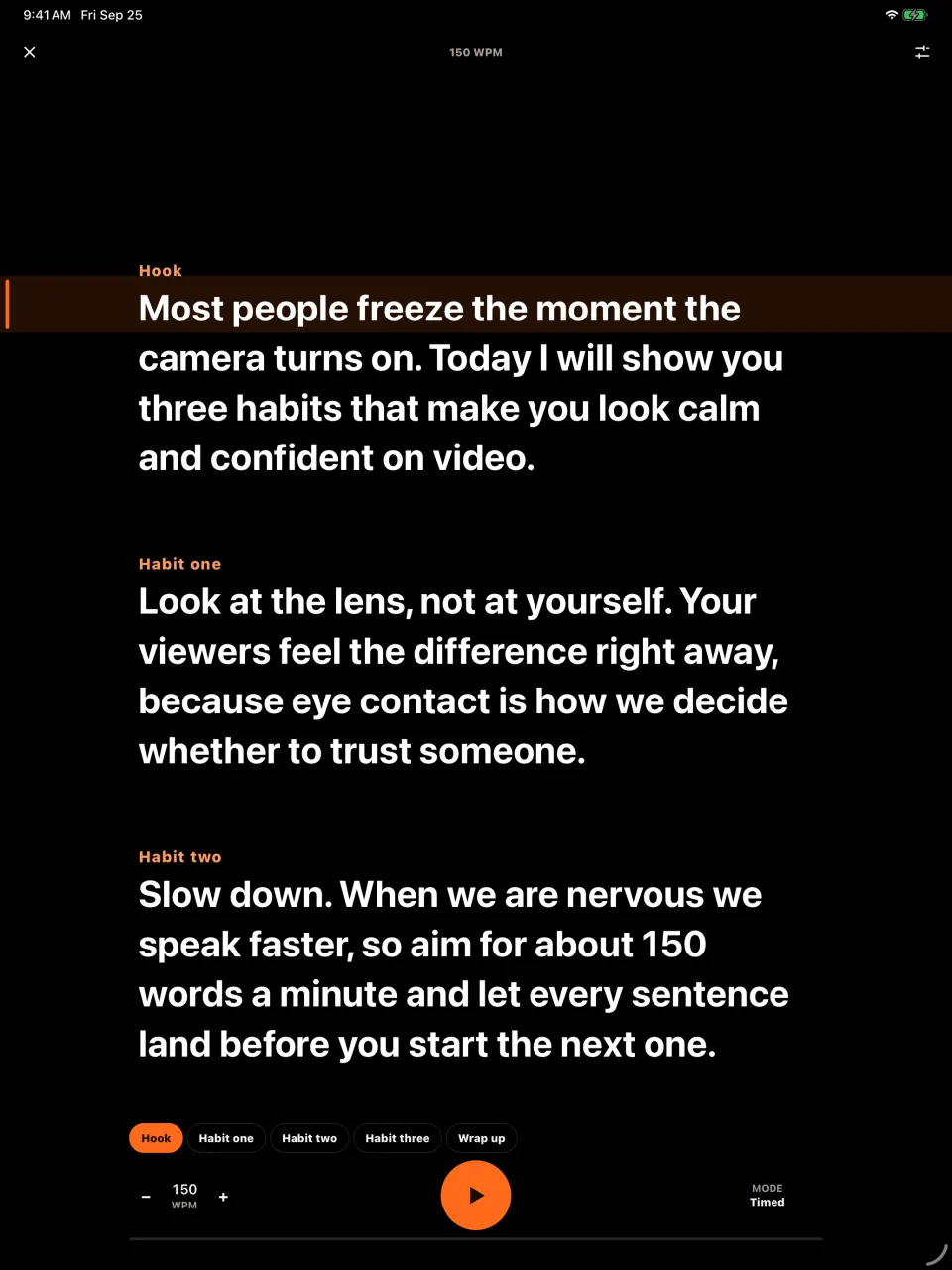
Talkzy is built for the part presenter notes weren’t designed for: reading a script while you look into the camera. The script runs in a narrow column right under the front camera of the iPhone or iPad, and it can follow your voice with Apple’s on-device speech recognition, run at a speed you set in words per minute, or move only when you press a remote.
Each # line becomes a section you can jump to with a page-turner or keyboard, every take is saved as its own clip named after the script, and prompter-only mode turns a second device into full-screen, mirrored text for a glass rig next to the camera you present with. Keep Keynote for the slides; use the prompter for the talking.